 CarVid
Video on your car display
CarVid plays your M3U playlists, Jellyfin / Emby libraries and local videos — and puts them, or any app on your iPhone, on the car screen. No account. Nothing leaves your phone.
 TestFlight Beta
For passengers only. Never watch while driving.
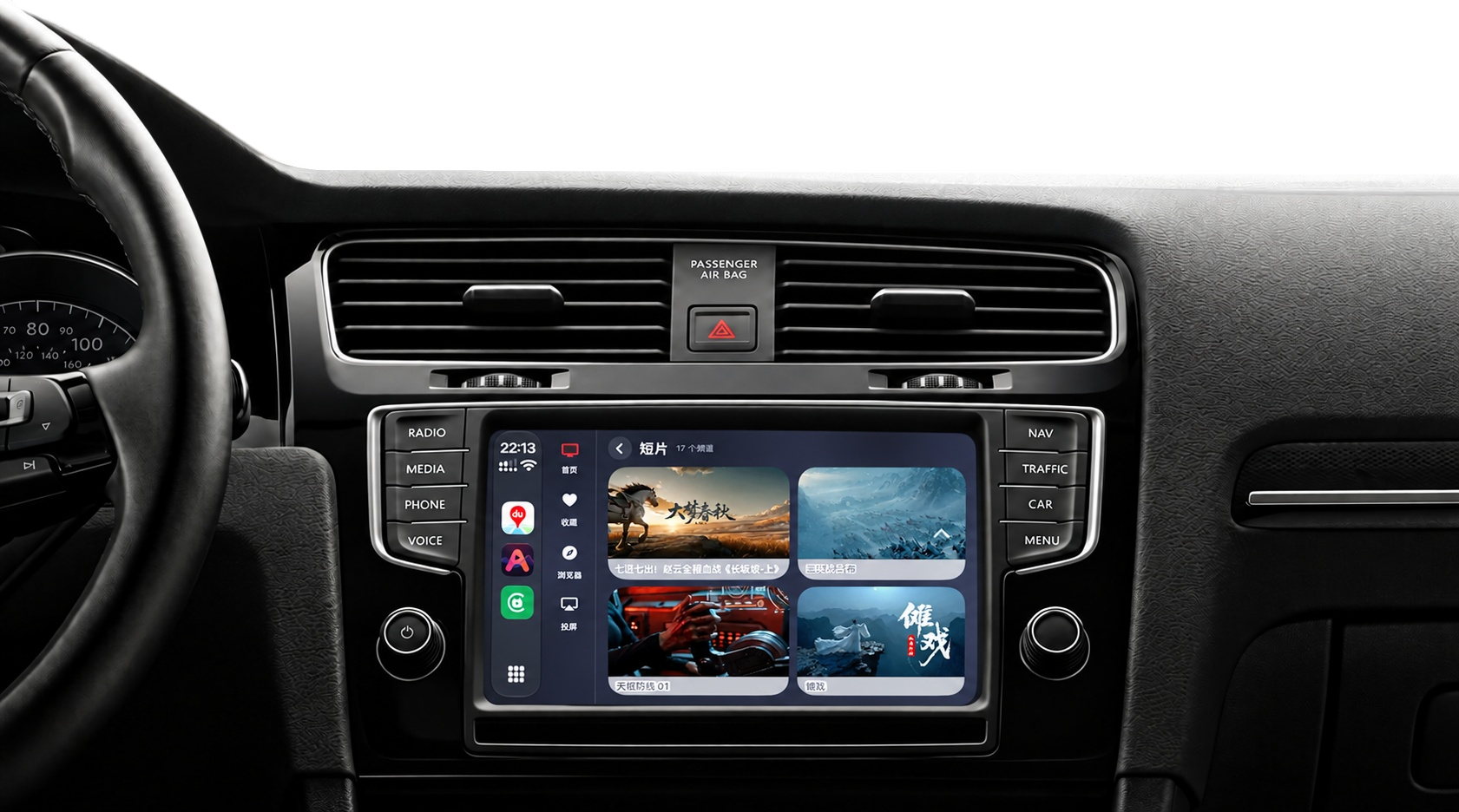
Everything you need, and nothing you don't
All you need is a playlist link or your own media server. CarVid parses it, sorts it, and plays it — on the phone or on the car screen.
M3U / M3U8 playlists
Paste a link or scan a QR code. Groups, logos and channel names from your playlist are recognized automatically. Add as many as you need.
Screen mirroring
Put your whole iPhone screen on the car display. Works with any app — even ones without a Cast button. One tap to start.
Cast from your apps
Receive DLNA / UPnP video from compatible apps and continue playback on your car display.
Jellyfin & Emby
Sign in to your own server. Browse libraries, seasons and episodes; episodes are sorted for you and resume where you stopped.
Plays almost anything
Hardware-accelerated decoding, with a software decoder as fallback for MKV, HEVC and DTS. Embedded and external subtitles included.
Car mode & CarPlay
A landscape layout with oversized controls and large type for the car screen, and one-tap switching between entries.
Your own videos
Import files from Files or Photos and play them offline, sorted automatically and ready to go.
Browse while you watch
A mini player keeps playing while you look through the rest of your list. Favorites, groups and search are one tap away.
Private by design
No account, no sign-in. Playlists, server addresses and credentials never leave your iPhone — there is no server of ours to send them to.
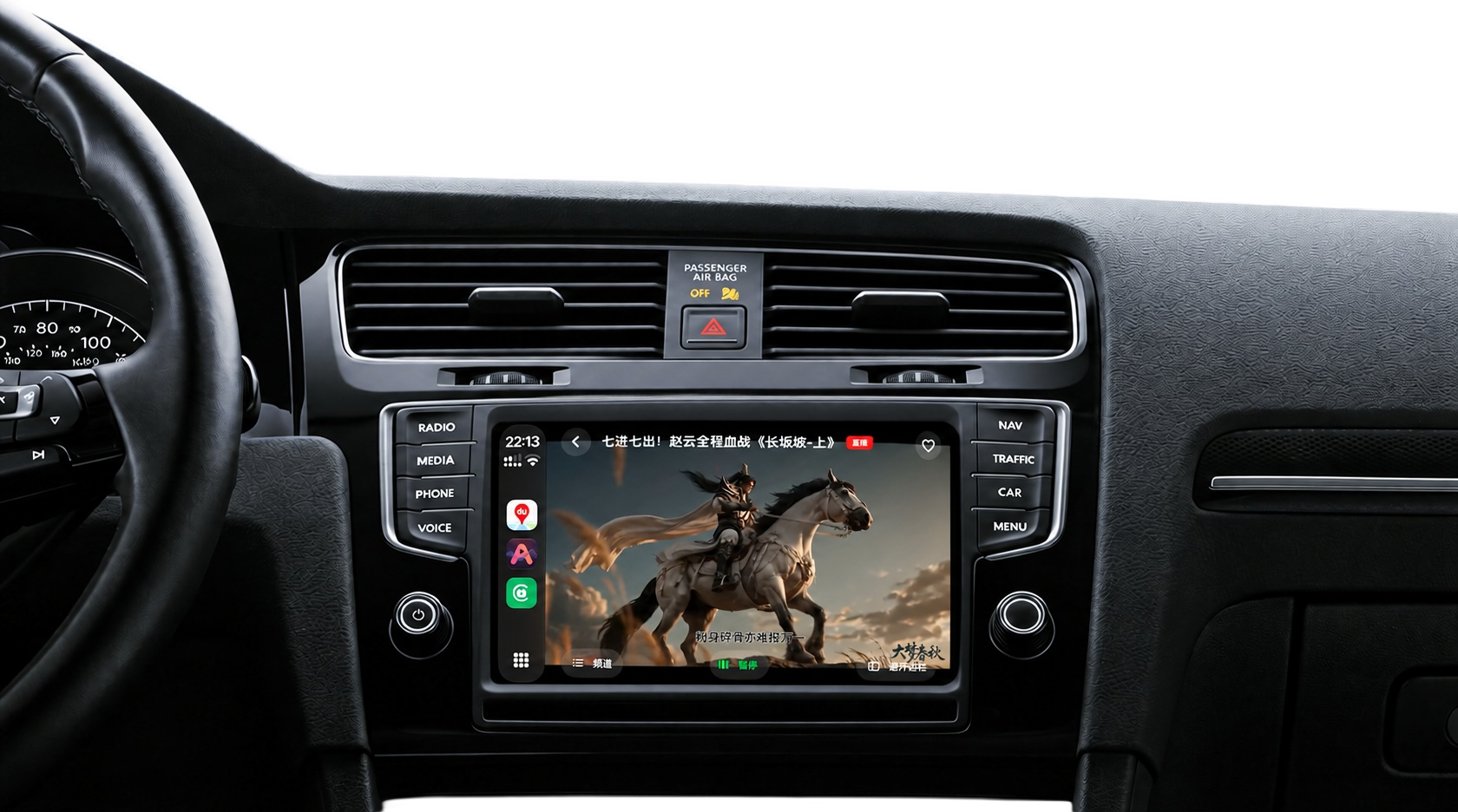
Cast anything to your car
Connect your iPhone to CarPlay, open CarVid on the car display, and what's on your phone is on the big screen.
- 1Apps with a Cast buttonIn another app, tap Cast and choose your car. CarVid receives DLNA / UPnP casts and plays them on the car screen.
- 2Any other appMirror your iPhone screen. Open any app and it appears on the car display exactly as on your phone.
- 3Keep watchingCasting keeps running in the background with a Live Activity on your Lock Screen, so you can switch apps freely.
Free to download. Pro when you want more.
Playlists, media servers and local videos work out of the box. CarVid Pro unlocks everything, on the phone and in the car.
Pay once and keep it forever, or subscribe and cancel anytime. Purchases are handled by the App Store.
- Unlimited sourcesAdd unlimited playlists and media servers
- Car modeLandscape interface optimized for in-car use
- Real-time subtitlesSync video subtitles to the big screen for easier viewing
- Unlimited castingReceive casts and mirror your screen with no time limit
Join the community
Questions, playlist tips, feature requests — pick whichever channel you already use.


Frequently asked questions
I bought a membership, but it still says I’m not a member
Restart your iPhone, then open CarVid again.
This can happen when Apple StoreKit’s purchase-status cache has not refreshed. Restarting your phone can help refresh the cache and sync your membership status.
What is a source? Does CarVid come with channels?
CarVid is just a player and comes with no channels or videos.
Once you add one, its channels and titles show up on Home.
What do I need to watch in the car? What if CarVid isn't on the car display?
An iPhone and a car with CarPlay. Once CarPlay is connected, open CarVid on the car display to play the channels you added, receive casts from other apps, or mirror your iPhone screen.
If the CarVid icon is missing from the car display, go to Settings → General → CarPlay → your car → Customize on your iPhone and add CarVid back.
Does casting need Wi‑Fi? How do I watch YouTube or TikTok in the car without Wi‑Fi?
Casting works by another app handing the video to CarVid over your local network, so Wi‑Fi on the iPhone has to be on.
Without Wi‑Fi, use Screen Mirroring. It sends your iPhone screen straight to the car display over the CarPlay connection, no Wi‑Fi needed. Whatever you open on the phone appears on the car display.
I can't find CarVid as a cast device in other apps
Check these in order:
1. Connect CarPlay first. CarVid only appears as a cast device after the car is connected.
2. On your iPhone, turn on Settings → CarVid → Local Network.
3. Turn on Wi‑Fi on your iPhone.
Some apps don't support casting at all. For those, use Screen Mirroring.
Which formats are supported?
M3U and M3U8 channel lists, HLS and standard HTTP streams, and local video files.
Hardware decoding is used whenever possible. MKV, HEVC and DTS switch to the software decoder automatically.
Embedded and external subtitles are both supported, including subtitle tracks inside MKV files.
A channel keeps loading, shows a black screen, or has no sound
Try another channel first, to see whether it's just this channel or all of them.
Only some channels fail: that stream itself has most likely stopped working. When a channel has more than one line, you can switch to another at the top of the player.
Nothing plays: check your network first. If you use a provider account, make sure nobody is watching on another device at the same time. Many accounts allow only one device at a time.
I bought Pro but it isn't active, or I switched phones
Open the CarVid Pro page and tap Restore at the bottom. You need to be signed in with the same Apple Account you used for the purchase.
If that doesn't help, please contact us.